A replacement part only helps if it really matches your drive. Hard drives that look identical on the outside often differ inside: other heads, another preamp, a different firmware family or a different board revision. A wrong donor can make a recovery harder, and a wrong PCB can even damage the drive. This guide explains which numbers on the label and on the board you need to compare before you buy a donor drive or a PCB.
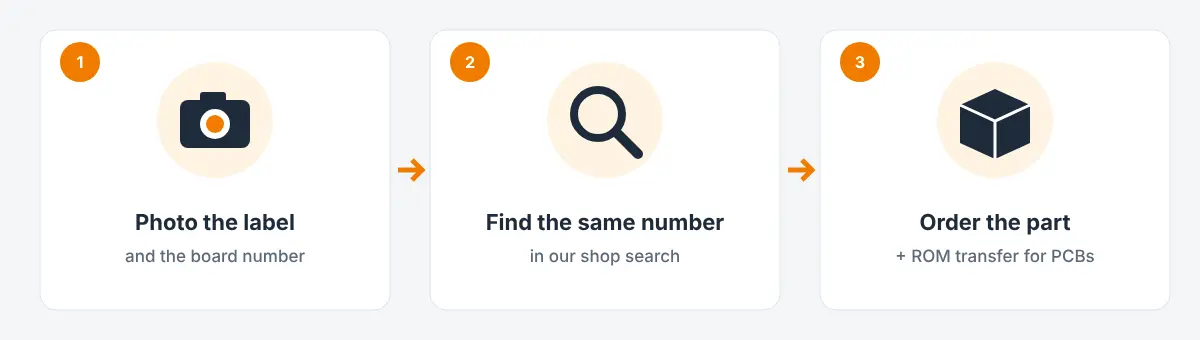
Which part do you need?
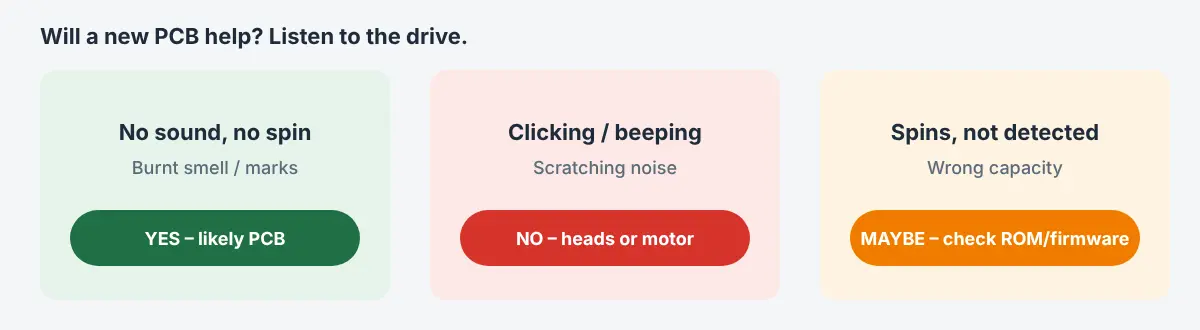
| Symptom / goal | Usual part | What has to match |
|---|---|---|
| Drive is completely dead, no spin, burnt smell, after power surge or wrong power supply | PCB (controller board) + ROM transfer | Board number and revision, chips on the board, firmware ROM of your board |
| Clicking, beeping, not reading after a drop (head damage) | Donor drive for a head swap (lab work) | Full model, firmware/family codes, production date close to yours, same head count |
| Motor stuck (stiction / seized spindle) | Donor drive of the same family | Full model and family codes |
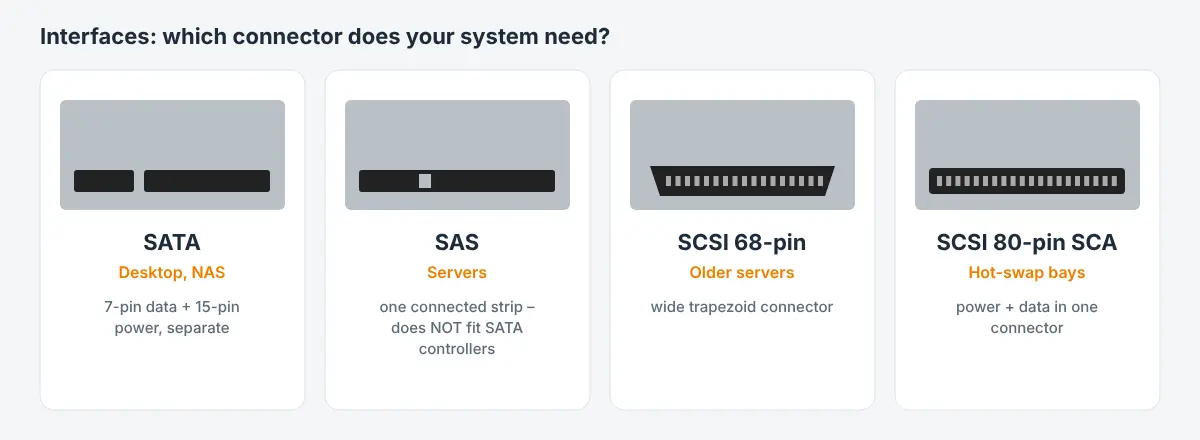
| RAID / NAS / server: a disk failed and you need the same drive again | Complete replacement drive | Model, capacity, interface (SATA/SAS/SCSI), sector size, firmware generation |
Important: If the data on the drive matters, do not experiment. Opening a drive outside a clean room or powering it up again and again can destroy data for good. Swapping the PCB is the only repair that is realistic at home – and even then only with the original ROM.
The general checklist
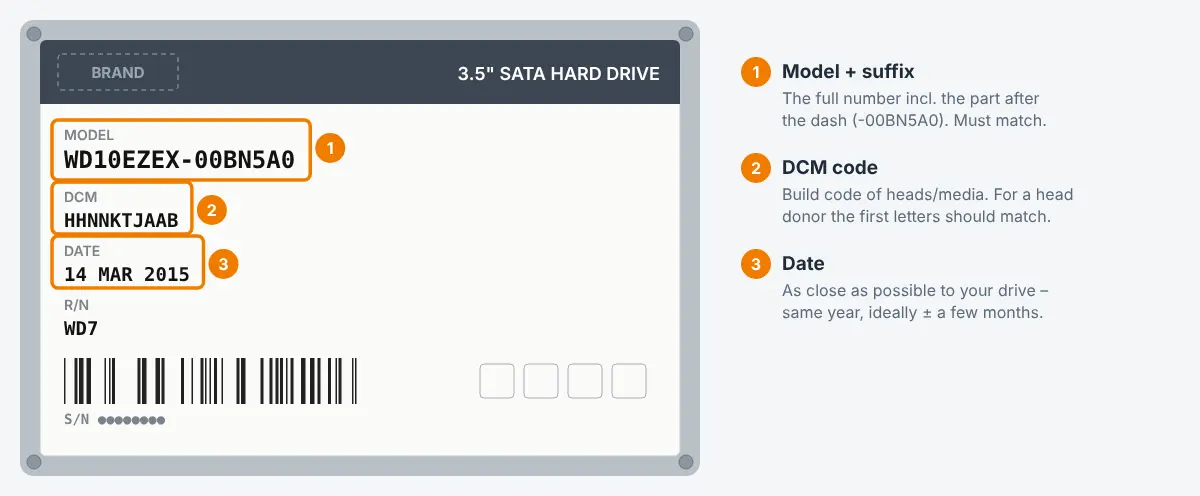
- Full model number – not only “WD10EZEX”, but the complete number including the suffix, e.g.
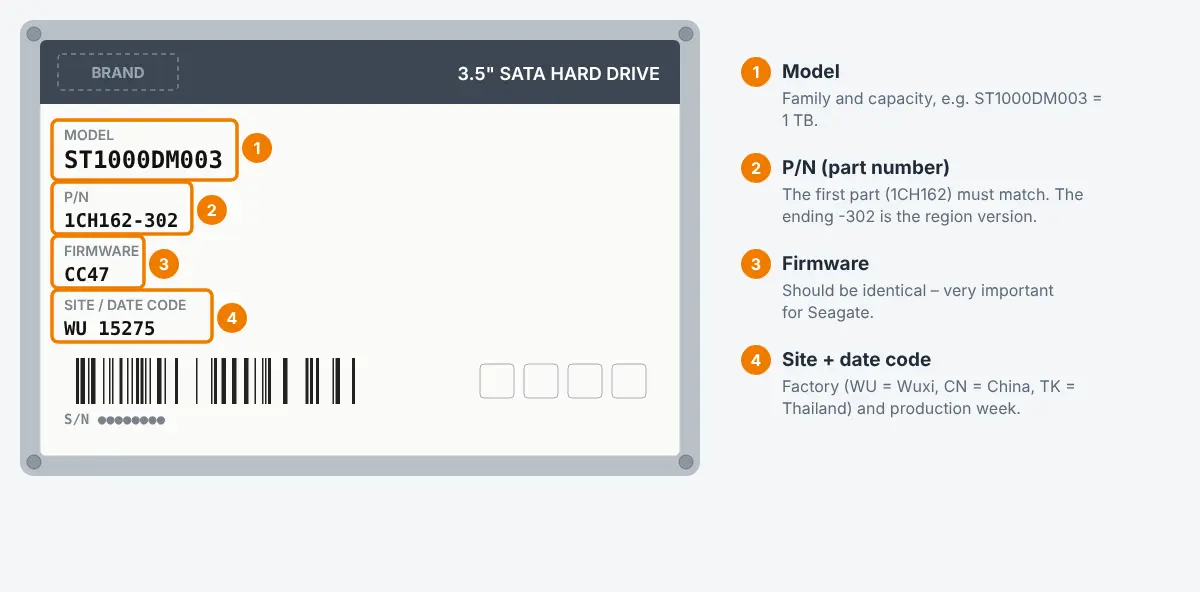
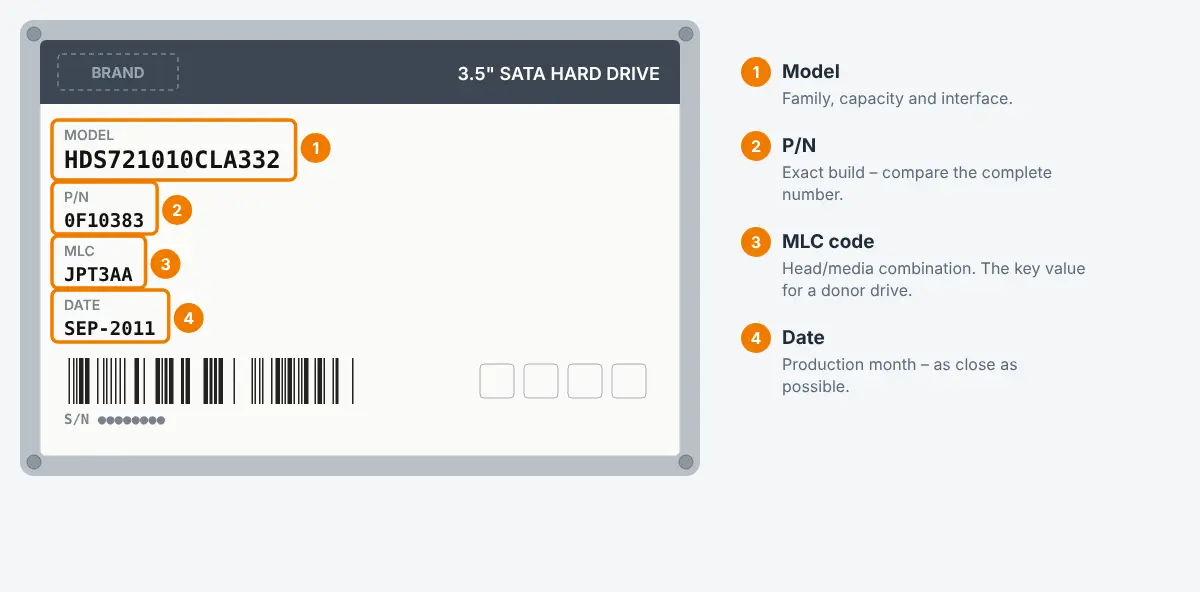
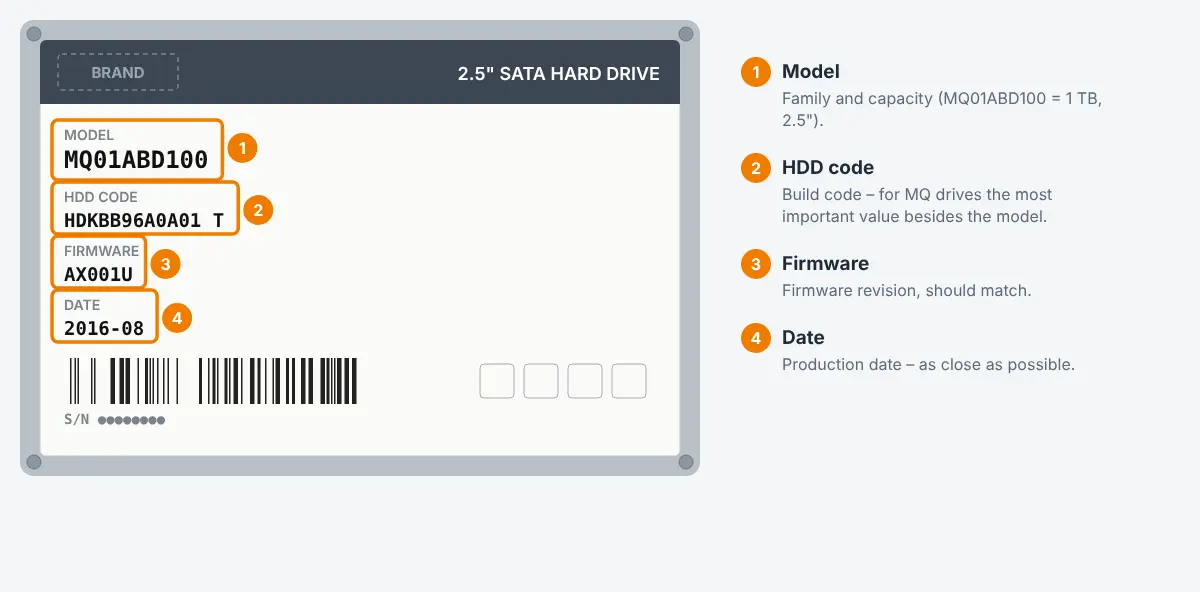
WD10EZEX-08WN4A0. The suffix tells which internal version it is. - Manufacturer codes on the label – DCM (Western Digital), firmware + site code + P/N (Seagate), MLC (HGST/Hitachi), HDD code / board number (Toshiba). Details on the pages below.
- Production date and country – donors from a date close to your drive (as a rule within about 3 months) and from the same factory match much more often.
- Firmware version – printed on the label of many drives; on Seagate it is essential.
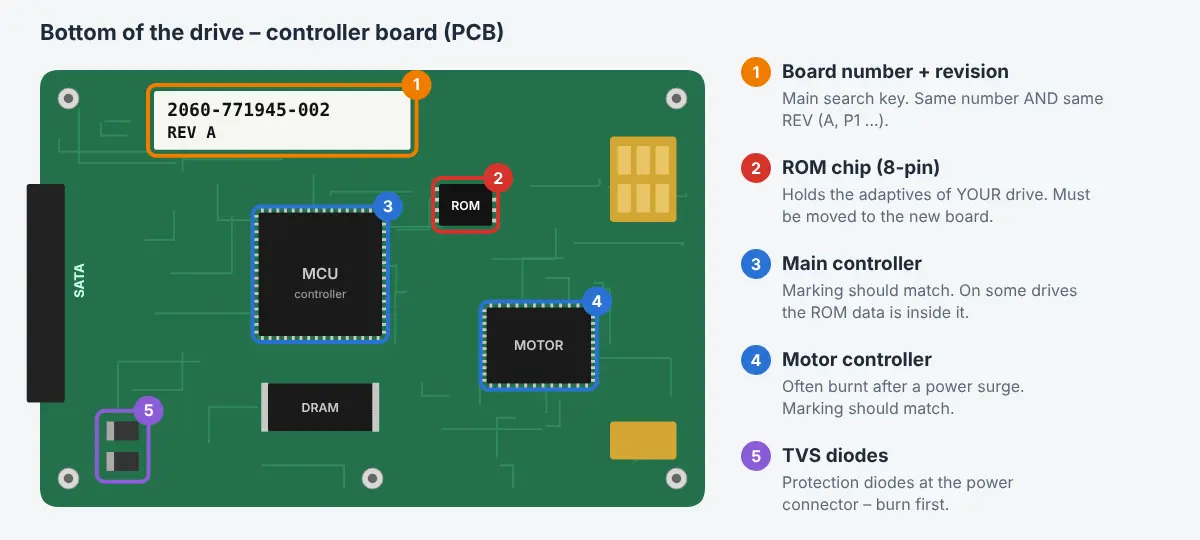
- PCB / board number – printed on the board itself (white sticker or silkscreen), not on the label. Compare it together with the revision.
- Capacity and number of heads – drives with the same model can be built with a different number of platters/heads.
Where do I find the numbers?
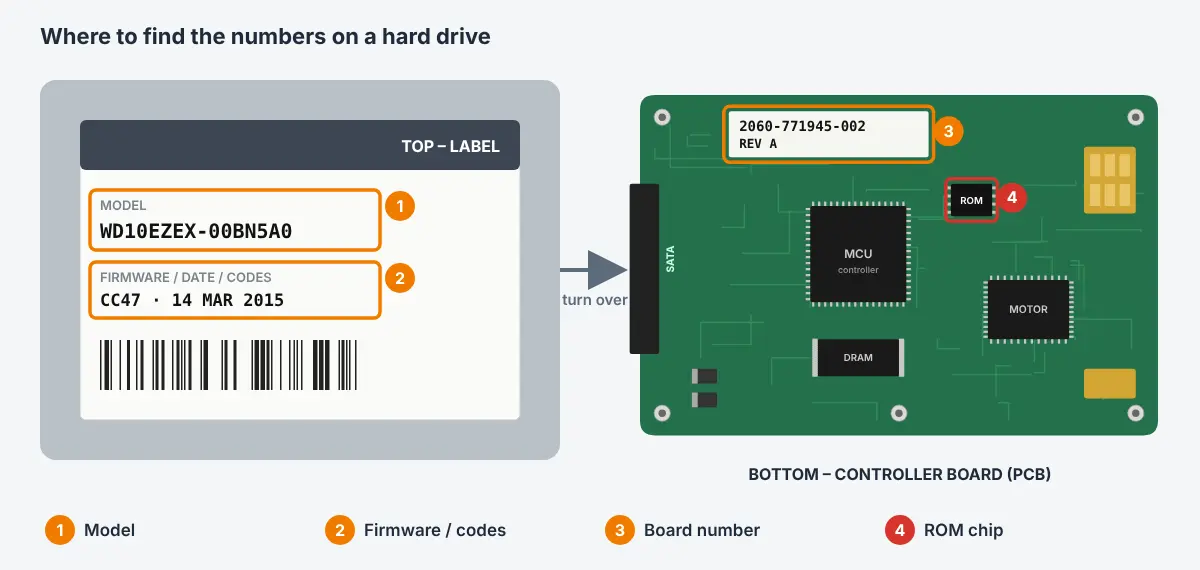
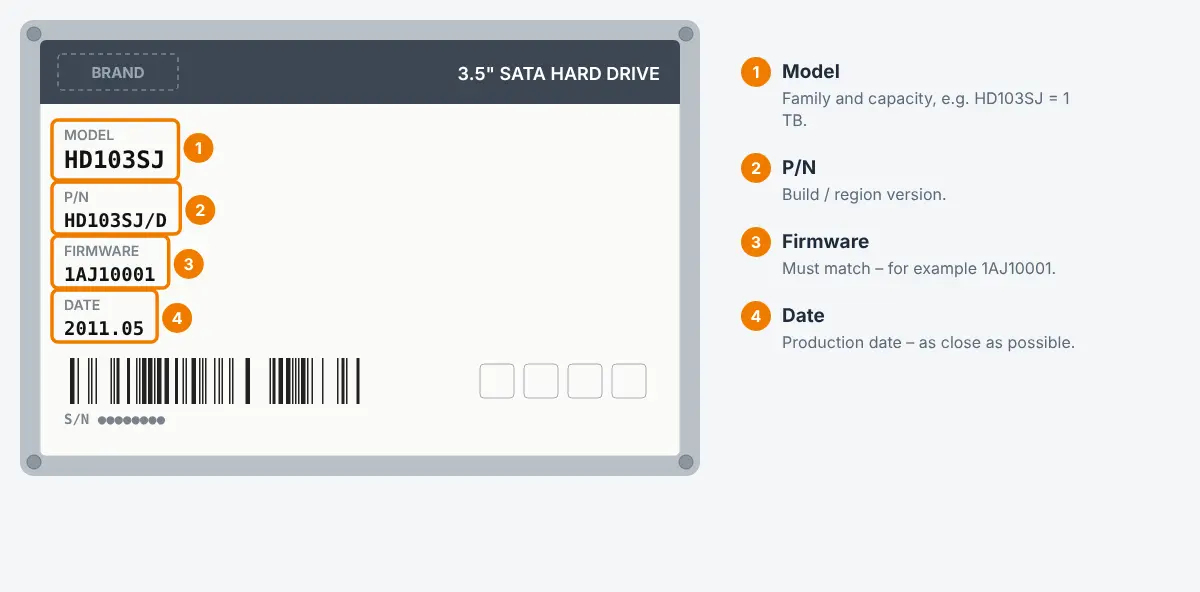
- Top label: model, serial number, P/N, firmware, DCM / site code / MLC, date, country.
- Bottom side, on the PCB: board number (e.g.
2060-771945-002 REV Aon WD or100xxxxxxon Seagate), revision, sometimes the main controller chip marking. - Take sharp photos of the label and of both sides of the board. With these photos we can check compatibility for you before you order.
Guides by manufacturer and part
Not sure? Send us the photos
We have been working with hard drive parts and data recovery for many years and keep a large stock of donor drives and PCBs. Send photos of the label and the board via our contact form or to info@hdd-parts.eu and we will tell you which part fits. For PCBs we also offer the ROM transfer service: you send us your original board, we move the ROM to the new board and ship it ready to use.
Browse the shop – tip: search for the full model number.

 English
 Deutsch
 Français
 Italiano
 Español